On a Windows PC, look in the Bitcoin folders under %LOCALAPPDATA% and %APPDATA%. On an old drive connected by USB, look inside that drive’s old Users folders instead. The shortcuts on your current PC point to your current profile, not the old one.
Where is wallet.dat on Windows?
Check these locations for each Windows account that used Bitcoin Core:
%LOCALAPPDATA%\Bitcoin\wallets\— the wallet directory in the current Bitcoin Core documentation.%APPDATA%\Bitcoin\wallets\— a location worth checking on older installations.%APPDATA%\Bitcoin\wallet.dat— a common location for an older single wallet.
Open the wallets folder and check its subfolders too. A named wallet can have its own directory. Custom -datadir or -walletdir settings can put the wallet somewhere else, so an empty default folder is not a complete search.
Searching an old drive that no longer boots
You do not need to boot the old Windows installation to search readable files. Connect the drive to a working computer and note the drive letter Windows assigns it. If Windows asks to format or initialize it, cancel. If the drive clicks, disconnects or reports read errors, stop and consider imaging or specialist help before repeated searches.
For example, if the old drive is now E: and the old account was Alex, check:
E:\Users\Alex\AppData\Local\Bitcoin\wallets\E:\Users\Alex\AppData\Roaming\Bitcoin\wallets\E:\Users\Alex\AppData\Roaming\Bitcoin\wallet.dat
AppData is hidden by default; enable hidden items in File Explorer or enter the full path. Repeat the check for the other accounts under E:\Users. Also inspect Windows.old\Users, copied profile folders, Desktop, Documents and external backups. A Bitcoin folder may contain blockchain data even when its wallet was saved elsewhere.
A read-only PowerShell search for wallet.dat
On a stable, readable drive, this command lists matching filenames inside the old Windows profiles. Replace E:\Users with the folder on your old drive. It lists paths and file metadata; it does not open, move or rewrite wallet files.
$oldProfiles = 'E:\Users'
Get-ChildItem -LiteralPath $oldProfiles -Filter 'wallet.dat' -File -Recurse -Force |
  Select-Object FullName, Length, LastWriteTime
-Force includes hidden items; it does not bypass permissions. Read any access-denied or path errors: affected folders were not fully searched. Check another backup or use an authorized account with access to the old profile.
No output means no file with that exact name was found in the folders the command could read. It does not search inside ZIP archives, recognize a renamed wallet, or recover deleted files. It also misses files outside the folder you selected.
No filename match? Change the search
- Check backups outside the old profile. Look through USB drives, cloud-sync copies, migration folders and archives. A backup can have a name such as
bitcoin-backup.datrather thanwallet.dat. - Check the wallet you actually used. Electrum wallet files and MetaMask browser storage are different targets. Searching only for
wallet.datwill not cover them. - Use a content scan for files that still exist. A filename search cannot identify a wallet that was renamed. CryptoTrace’s Find wallets workflow offers Deep Scan for supported wallet structures and other recovery material.
- Treat deletion separately. Deep Scan reads existing files. If the file was deleted, deleted-wallet recovery is a different workflow, limited to supported NTFS sources and data that remains available.
Search the old drive with CryptoTrace
In Find wallets, choose Deep Scan and set Location to the old drive or the profile folder you want to examine. Start the scan, then review the findings together with coverage warnings. Searching one old profile first keeps the results focused; scan other profiles and backup folders if needed.
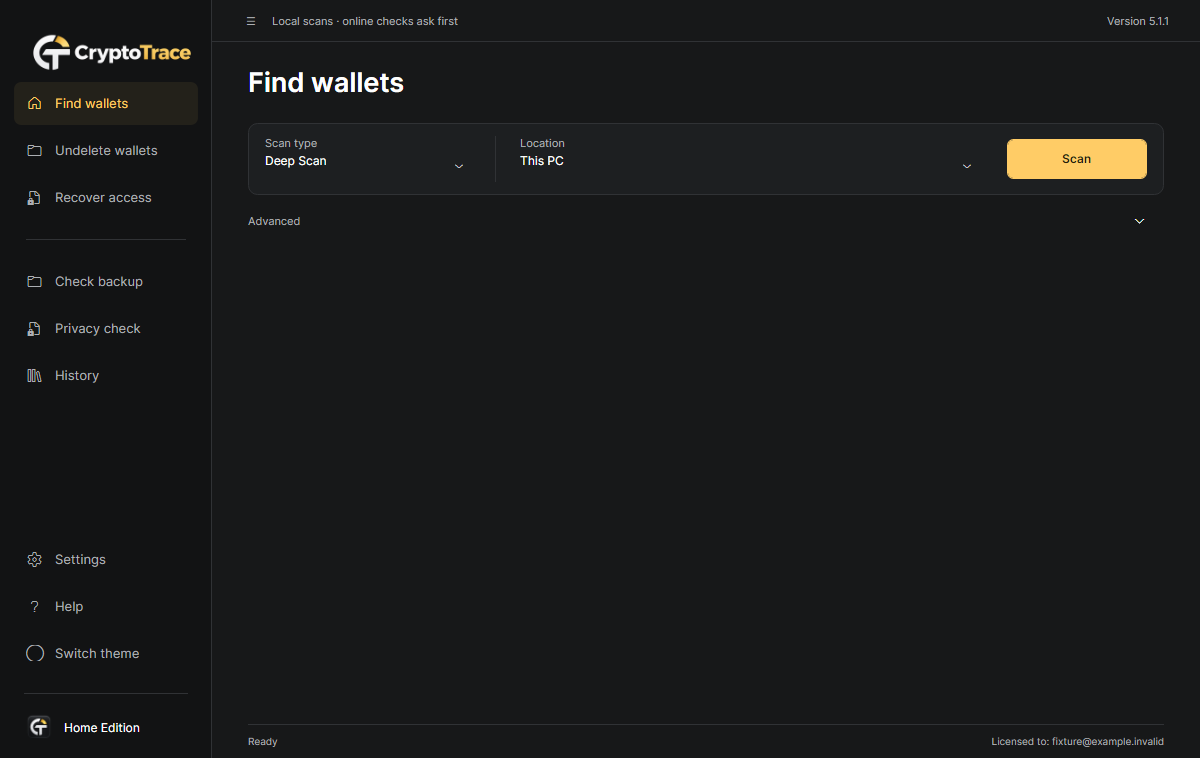
The scan reads local files. A result is a lead to inspect: it does not establish ownership, a usable password or spendable Bitcoin. Review the supported workflows and their limits before choosing your next step.
Download the Windows trial to search your own old drive or backup. Start with the source folder you identified above.
Found a candidate? Preserve it before opening it
- Keep the original. If the old wallet is not running, preserve the containing folder and work from a copy. Keep nearby files and notes that explain where it came from.
- Back up a running wallet through Bitcoin Core. Use its wallet-backup function rather than copying a database while Core may be updating it.
- Separate identification from access. A file called
wallet.datmay be encrypted, damaged, empty or watch-only. Its name and size do not prove a balance. - Use trusted restoration software on a copy. Check Bitcoin Core’s official restoration guidance and the wallet’s format before migration or repair. Never upload the wallet, a private key or a recovery phrase to an online checker.
If you still cannot locate it, continue with the old-backup search checklist or the old-drive preservation guide.