
Every CryptoTrace feature, explained
Start with wallet discovery, then choose the tools that fit your evidence. This guide explains what each CryptoTrace 5.1.1 workflow does, how to use it, and what its results can establish.
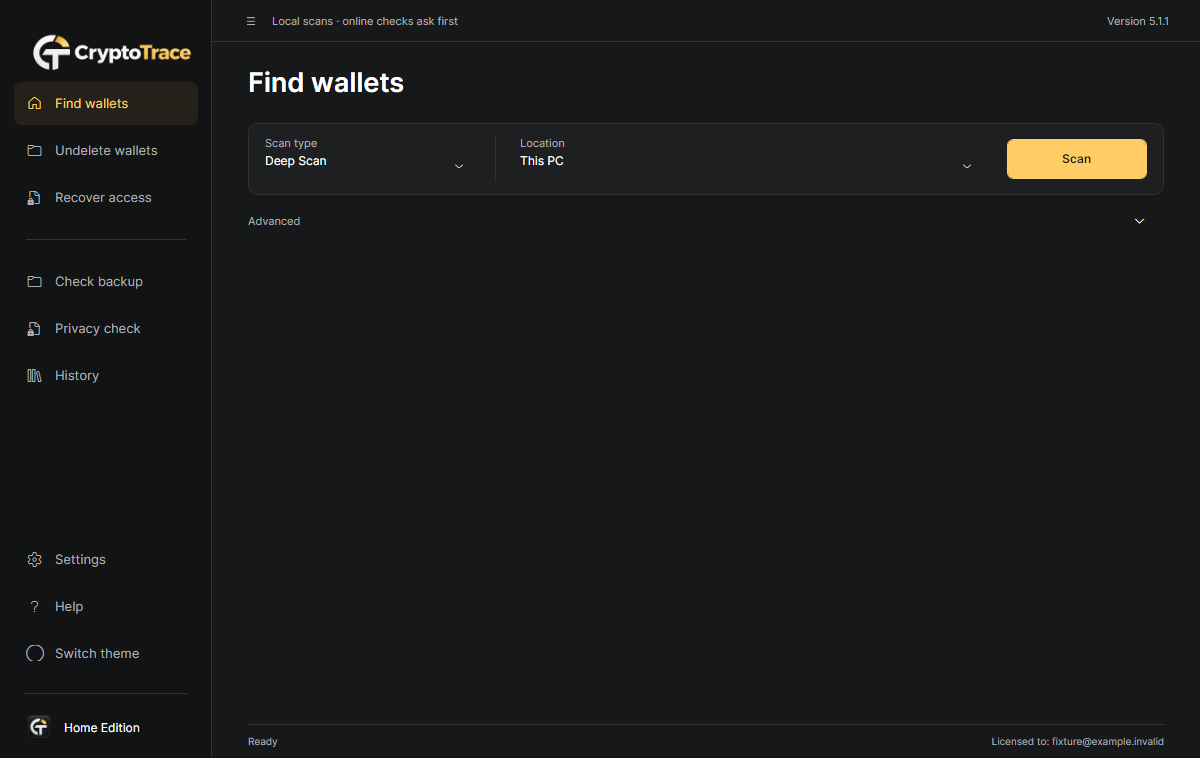
Find existing wallets and recovery material
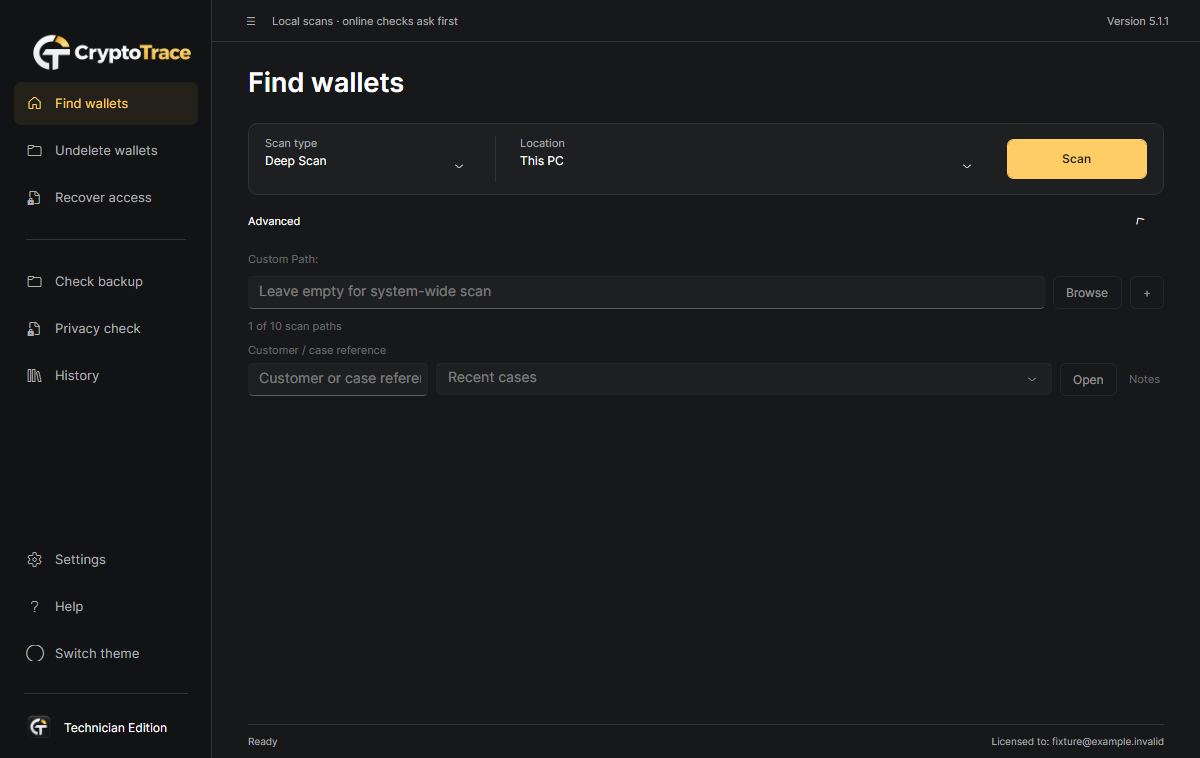
Find wallets searches supported local sources for wallet files, private-key patterns and BIP39 recovery phrases. It can identify supported Electrum and Ethereum containers even when renamed. Multiple distinct keys are retained within the configured finding limit; complete valid mnemonics take priority over overlapping fragments.
How to use it
- Choose Quick for known locations or Deep for file contents.
- Select your computer, a drive or a folder, then Scan.
- Review findings and coverage before deciding the next action.
Know the limits: A detected file, phrase or public address does not prove wallet ownership, access or funds.
Control scan scope and performance
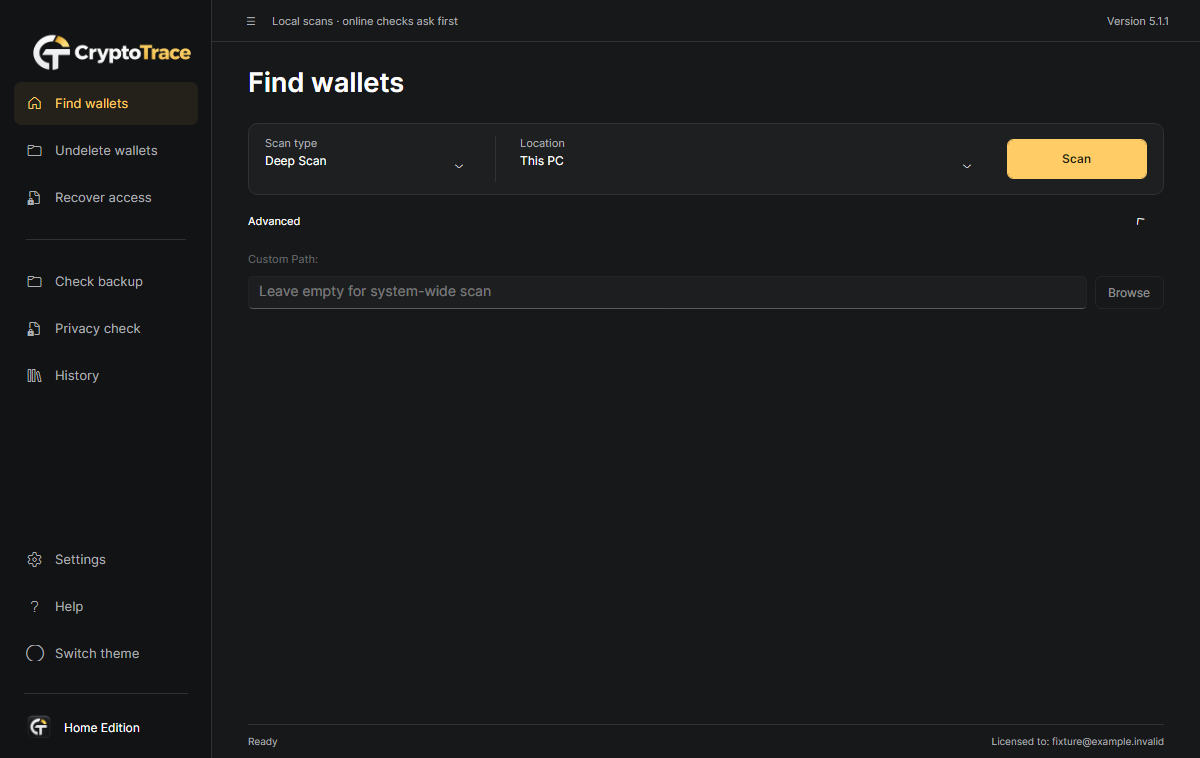
Quick, Deep, Old drive/folder and Browser wallet modes address different search scopes. Technician also has forensic-image scanning. Advanced selects a custom source; Settings controls exclusions, text budgets and SSD/NVMe/HDD profiles. Exclusions apply to discovered filenames and resolved link targets as well as selected paths.
How to use it
- Choose the mode for your source.
- Set exclusions and the appropriate disk profile.
- Use a fresh scan for current contents; enable metadata-trusted reuse only deliberately.
Know the limits: Fast reuse trusts file size and timestamp. Same-size, same-time changes can be missed; limited reads and skips remain coverage gaps.
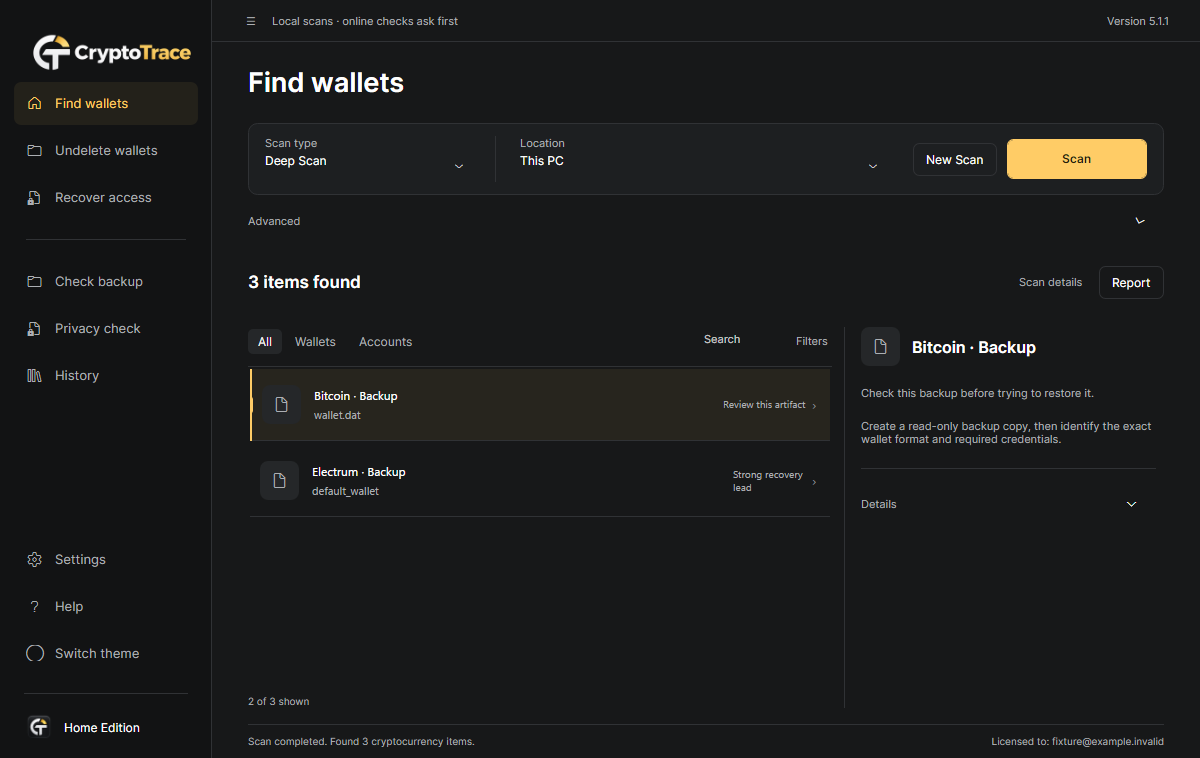
Understand findings, recovery leads and reports
Results separate filename clues, structural recognition and validated recovery material. Confidence filters, search and suggested next steps help prioritize your review. Home and Technician reveal full paths and Open Location, and export metadata reports in JSON or HTML. Copy Safe Summary avoids copying raw secrets.
How to use it
- Review confidence, verification details and coverage.
- Open the source location and preserve a private copy.
- Save a report or safe summary for your next step.
Know the limits: Readiness and confidence guide investigation; they are not a guarantee of restoration. Reports contain paths and metadata that may still be private.
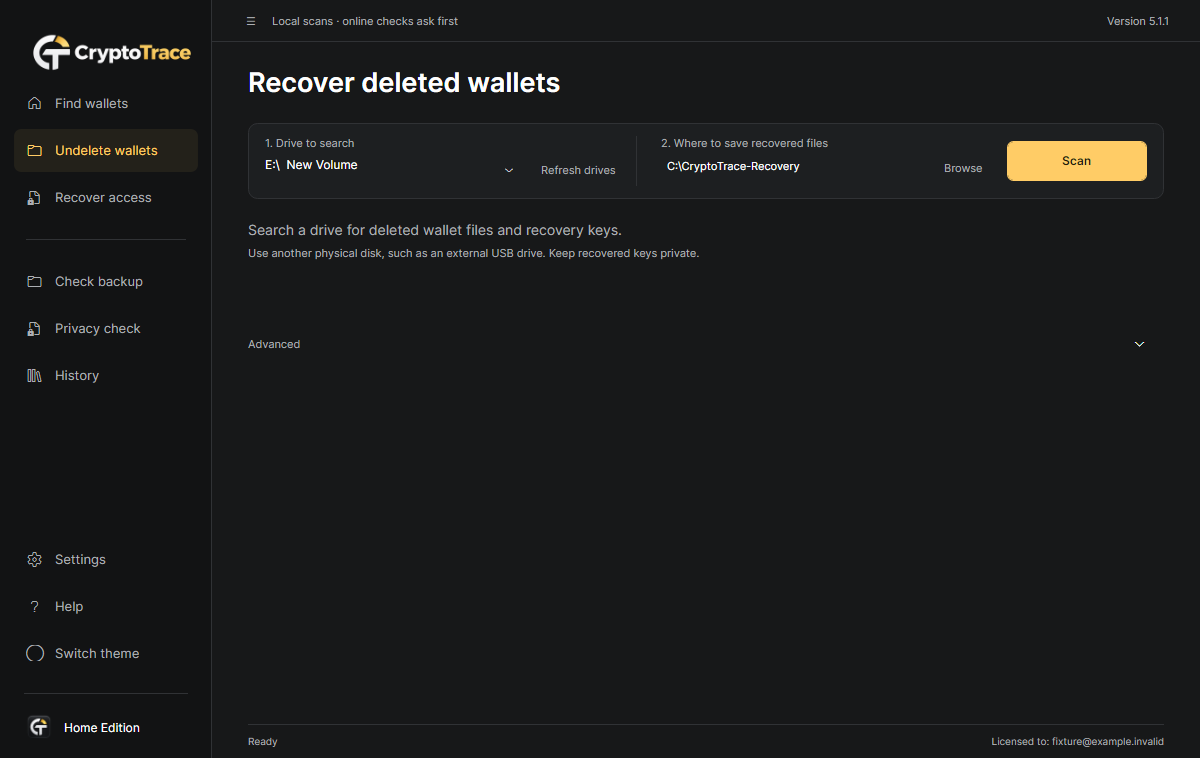
Recover eligible deleted wallet data
Deleted wallets searches supported NTFS sources for eligible deleted wallet files and recovery material. Physical disk selection is the default; image input is available under Advanced. The source is read-only and recovered output must go to another physical disk. Progress, Stop and the saved manifest explain the work completed.
How to use it
- Choose the source physical drive.
- Select a private destination on another physical disk.
- Start with administrator access when requested; review the manifest and warnings.
Know the limits: 512-byte logical sectors, including 512e, are supported; 4Kn is unsupported. Overwritten, erased or incomplete data may be unrecoverable. Encryption is preserved.
Recover access to an encrypted wallet backup
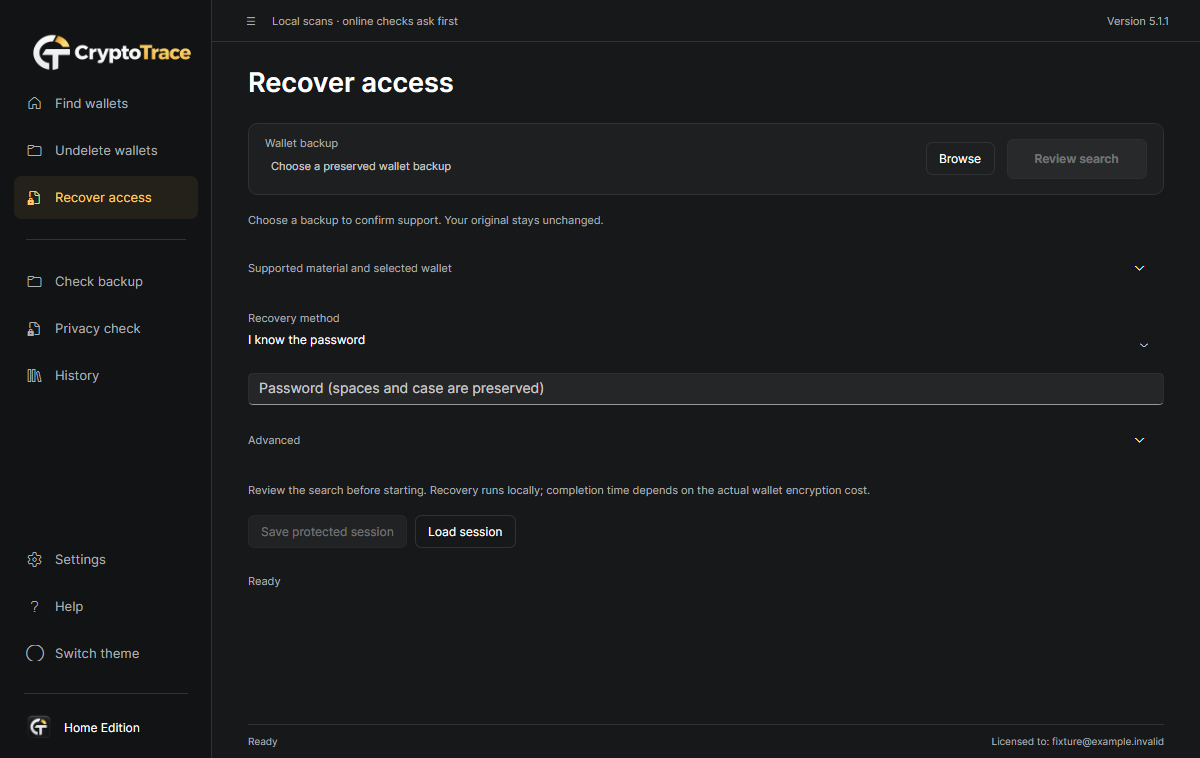
Recover access works locally with supported Bitcoin Core, Ethereum v3, standard Electrum and complete direct MetaMask vault inputs. Use a known password or a bounded search based on your own hints. Supported GPU jobs can use a trusted Hashcat backend with CPU fallback and independent CPU verification. Protected sessions support continuing eligible work.
How to use it
- Choose a preserved backup and review format support.
- Enter the known password or define your search hints and limits.
- Review the search before starting; reveal or export verified material only deliberately.
Know the limits: Only supported variants qualify. Search time depends on encryption and candidate count; success and funds are not guaranteed. Never use this on wallets without authorization.
Check and compare wallet backups
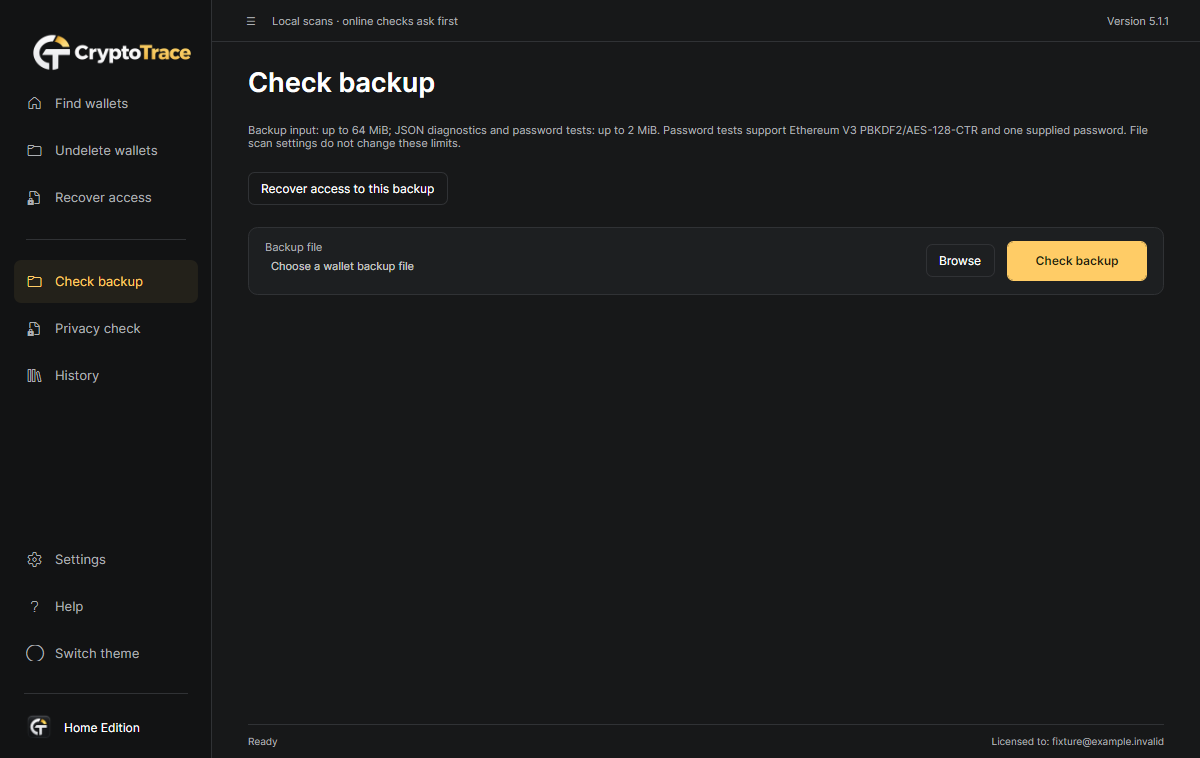
Check backup performs read-only recognition and diagnostics for supported backups. Electrum metadata can distinguish public-only, private, encrypted and external-device states. Details show a SHA-256 fingerprint; paid editions compare copies. The dedicated Recover access workflow provides broader supported password recovery.
How to use it
- Choose a backup file to inspect.
- Read key-material status, format details and warnings.
- Compare another copy or open Recover access if appropriate.
Know the limits: A matching hash establishes identical bytes, not a valid or restorable wallet. Database headers alone do not verify wallet records or keys.
Check files before sharing
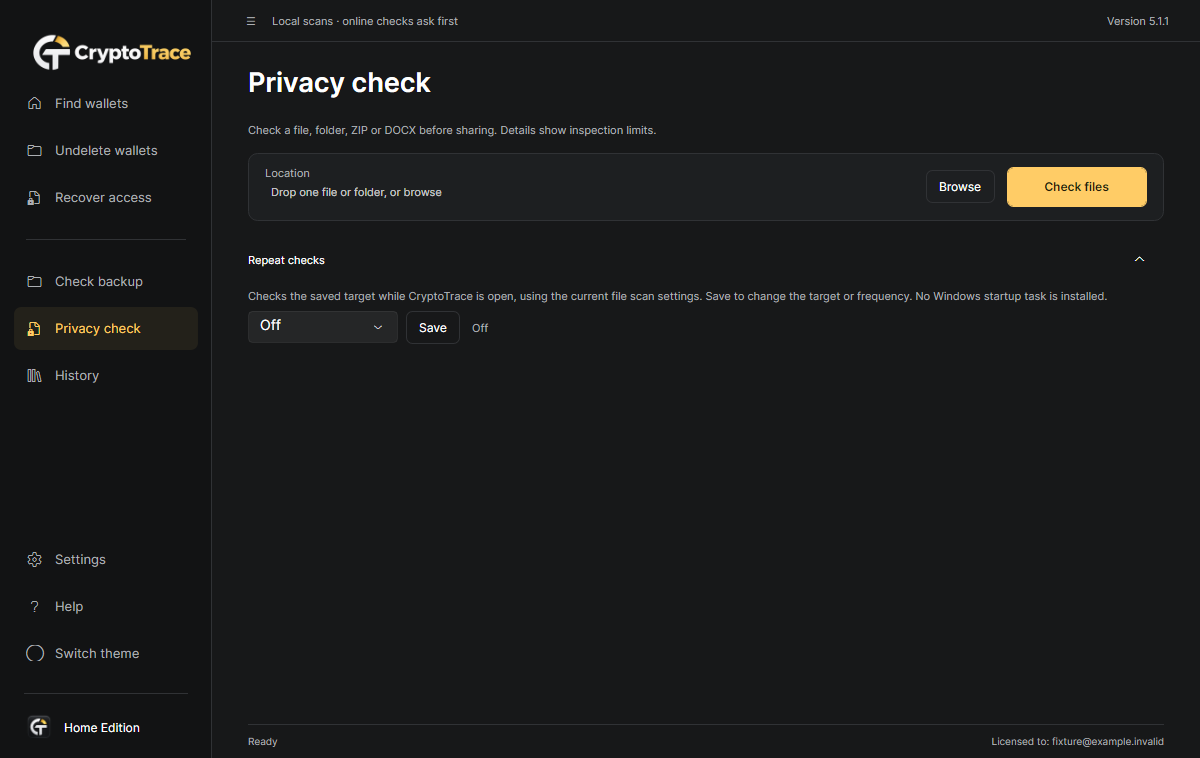
Privacy check inspects selected files or folders for supported readable recovery material, labelled API secrets, password-export CSVs and private-key containers. Supported ZIP and DOCX text is examined without extracting files to disk. Findings identify exposure without placing raw secret values in reports.
How to use it
- Browse to or drop one file or folder.
- Run the check and read the coverage details.
- Correct a separate working copy yourself, then check it again.
Know the limits: Encrypted or nested archives, images and PDF/OCR are outside this check. An empty result is not a safe-to-share certificate; CryptoTrace does not sanitize files or revoke credentials.
Find local exchange-account clues
Supported local exchange email and document exports can reveal registration, purchase, deposit or withdrawal clues. The Accounts filter separates these from wallet findings. Evidence dates and related locations help your investigation; use the fixed official service destination shown in the app rather than old email links.
How to use it
- Include your authorized readable exports in the scan scope.
- Select Accounts in the result filters.
- Review evidence and continue through the service’s official account-recovery process.
Know the limits: This does not access live inboxes or accounts. A message date is not a verified transaction time, and a clue does not establish ownership or a balance.
Save history and compare scans
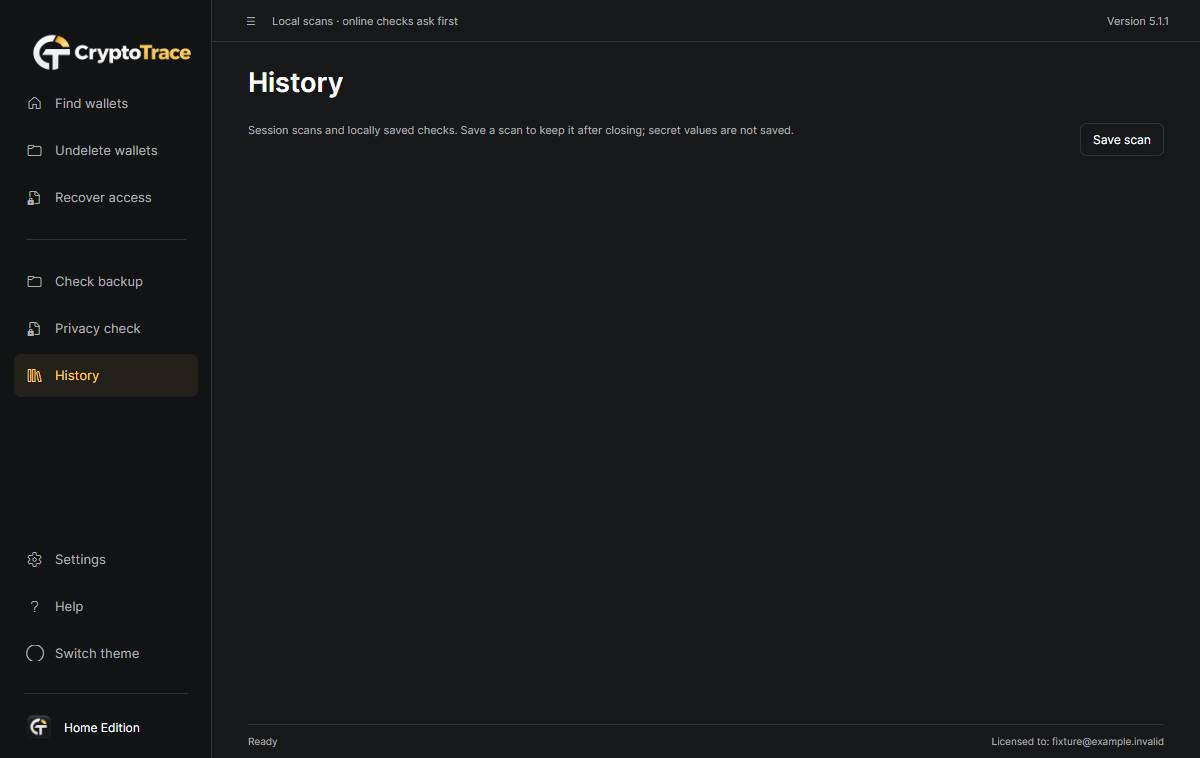
History keeps session scans and, in paid editions, explicitly saved local checks that survive restarting. Comparison distinguishes new, continuing and not-seen evidence, while retaining scope, policy and coverage warnings. Saved evidence preserves original and resolved paths where available, without raw secret tokens.
How to use it
- Use Report → Save scan or the History save action.
- Reopen a saved check from History.
- Compare it with another check of the relevant source.
Know the limits: Not seen does not prove deletion, revocation or safety. Different scopes, detector policies or incomplete coverage can make comparisons inconclusive.
Schedule repeat checks while the app is open
Home and Technician can schedule daily or weekly checks of a chosen Privacy check location. Runs keep a local baseline and highlight changes needing review. Manual scans take priority. This is an app-based reminder and checking workflow; no Windows background service or startup task is installed.
How to use it
- Choose a file or folder in Privacy check.
- Open Repeat checks, select daily or weekly and save.
- Keep CryptoTrace open; review changes and use Stop when needed.
Know the limits: Checks do not run after the app exits. Missed checks can run after reopening when idle; exclusions and coverage limits still apply.
Organize Technician customer work
Technician adds a sequential queue of up to ten sources, forensic .img/.dd/.raw/.bin candidate scans, named customer cases and notes. Record preservation, backup checks, recovery attempts and handover steps. HTML handover reports and password-encrypted .ctcase evidence packages support private transfer and review.
How to use it
- Add authorized sources and a case reference under Advanced.
- Enter non-secret customer notes and record the work performed.
- Export the handover or encrypted evidence package.
Know the limits: Image candidate scanning is distinct from Deleted wallets recovery. Evidence exports are not wallet backups; never place passwords, private keys or recovery phrases in case notes.
Manage privacy, updates and app controls
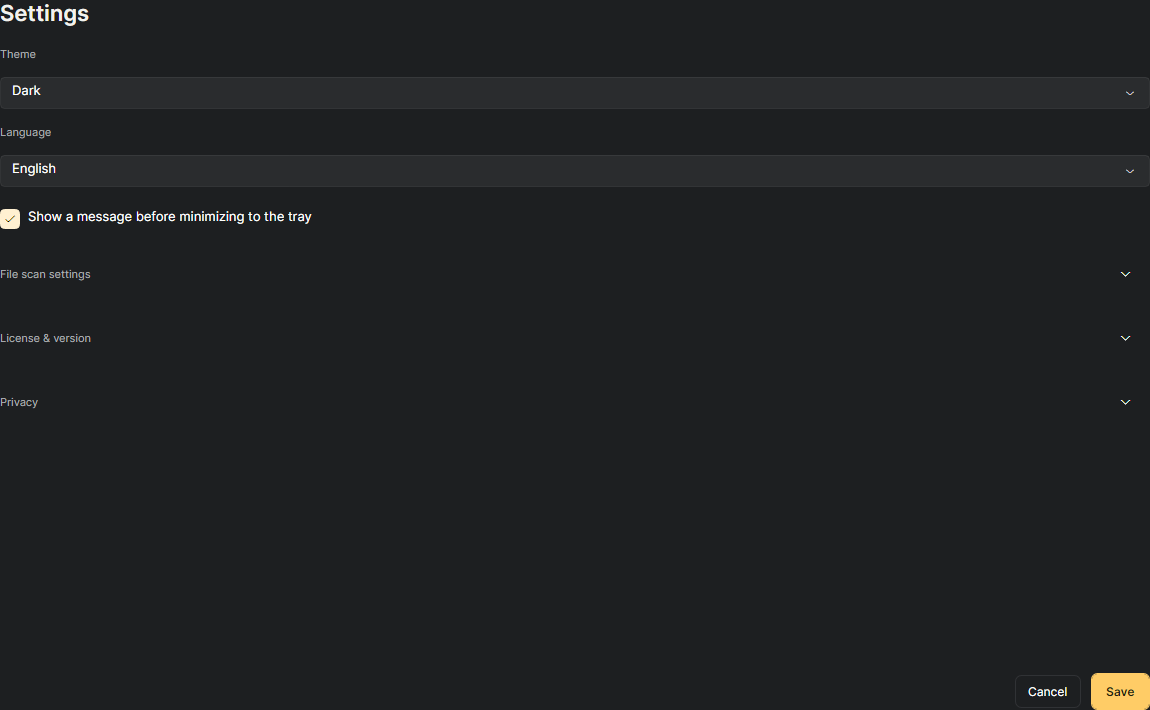
Settings manages appearance, interface language, scan options, exclusions, cache reuse and signed-license import. Manual update checks contact crypto-trace.app; optional startup checks are off by default. On Windows, closing the window minimizes to the tray after a notice; Tray → Exit finishes active-work cleanup and closes the app.
How to use it
- Adjust Settings and review the disclosed network options.
- Import your signed license or check for an update manually.
- Use the tray to reopen the app or Exit when finished.
Know the limits: Scan contents stay local. Trial app-use telemetry is disclosed; optional Bitcoin activity lookup sends the selected public address after consent. Updates require manual download and installation.
Check public Bitcoin activity with consent
Home / Technician · When a supported Bitcoin public-address finding is selected, the optional activity action can query Blockstream after your consent. It sends the selected public address, not wallet files, passwords, private keys or recovery phrases. Review the returned activity as a clue alongside the local evidence.
How to use it
- Select a supported Bitcoin public-address finding.
- Choose the activity action and read the consent prompt.
- Approve only if you want an external lookup; review the response.
Know the limits: This is an online lookup, not an offline scan. Activity does not establish ownership, recover a wallet or guarantee spendable funds; network availability and service responses can vary.
Choose the edition for your work
- Trial
- Three uses shared between scans and backup checks, with full finding paths hidden. Activation is required before paid recovery workflows start.
- Home
- Personal use for one user: unlimited checks, full paths, deleted recovery, local wallet-access recovery, reports, saved comparisons and repeat checks.
- Technician
- Home features plus commercial work on customer machines, up to ten queued sources, forensic image candidates, customer cases, handover notes and encrypted evidence packages.
Inspect only sources you own or are authorized to examine. Keep originals and recovered material private. Local checks do not establish ownership, balances or complete restoration.
Compare licenses